You are here: Installation and Maintenance Guide > Installation > Switching Dimension Icon and Dimension FastScan SPM Scanners > Swapping Dimension Icon Scanners

Swapping Dimension Icon Scanners

Some users may have more than one Dimension Icon scanner for their system. For the software to function correctly, it must be able to identify the scanner in use. Use the NanoScope 8.15 functionality to correctly swap the scanner.

HINT: Enter Realtime (by loading an experiment) prior to beginning the scanner swap procedure. Use the System Status Indicator to ensure the system is in order before proceeding.
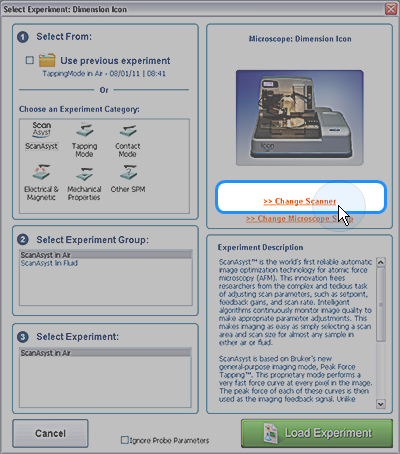
  1. Click the Select Experiment icon to open the Select Experiment window:

 
  1. Click the Change Scanner link to activate the Equipment Change wizard.
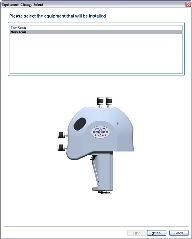
  2. Select New Icon to indicate to the software which new hardware you will install:

(Hover over the image to view larger)

 
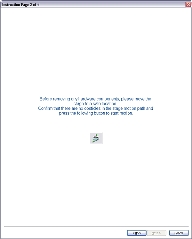
  1. Click Next. The wizard will open a window instructing you to move the stage to a safe location:

(Hover over the image to view larger)

  1. Click the Move Stage button to send the stage to a safe location.
NOTE: The Next button will not be activated until you move the stage to a safe position using the Move Stage button.
NOTE: You may not see this screen if the stage is already in the safe position.
 
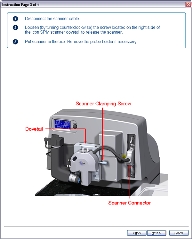
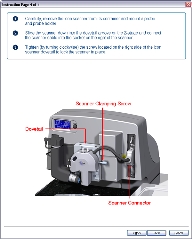
  1. Click Next. The wizard will display a window with instructions on removing the scanner and a diagram to help you identify the relevant components:

(Hover over the image to view larger)


To remove the Dimension Icon scanner:

  1. Unplug the connector wire that runs from the scanner to the Dimension Icon microscope base.
  2. Loosen (by turning clockwise) the screw located on the right side of the Dimension Icon SPM scanner dovetail to release the scanner.
  3. Carefully slide the Dimension Icon scanner up and out of the dovetail groove.
  4. Place the Dimension Icon scanner in the box it shipped in. To prevent damage to the scanner, NEVER leave the scanner sitting on a shelf or table top. ALWAYS leave the scanner either in its box when not mounted on the microscope.
  1. Click Next. The wizard will display a window with instructions on installing the new Dimension Icon scanner and a diagram to help you identify the relevant components:

(Hover over the image to view larger)


To connect the Dimension Icon scanner:

  1. Carefully remove the Dimension Icon scanner from its container and slide it down into the dovetail groove of the Z-stage.
  2. When sliding the Dimension Icon scanner into the dovetail, make sure that the probe tip will not touch the sample. If it appears that the tip may touch when the scanner is fully inserted in the dovetail, raise the Z-stage by selecting Microscope > Withdraw several times, or by selecting Navigate > Focus Surface and raising the Z-stage upward.
  3. Tighten (by turning counterclockwise) the screw located on the right side of the Dimension Icon scanner dovetail to lock the scanner in place.
  4. Insert the black 47-pin connector plug (from the scanner) into the socket to the right of the scanner.
NOTE: Dovetail engagement actuates with a spring. Failing to engage the spring-loaded dovetail causes a large increase in image noise due to reduced rigidity of the mechanical support of the scanner.
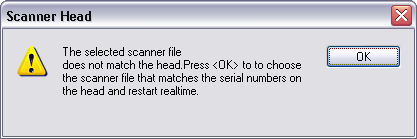
  1. Click Finish. Wait for the NanoScope popup to appear, informing you that NanoScope has detected the scanner change:

 
  1. Click OK and wait while the system loads the new scanner file.
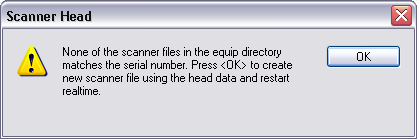
    1. If this is a new scanner, another popup will appear informing you that the scanner file is not found in the equip directory:


Click OK and wait while the system writes the scanner file to the appropriate location. When you enter Realtime the System Status Indicator should display no problems, indicating that the software is now using the correct scanner file.

  1. If this is a scanner previously used on this system, wait until the software is finished working to enter Realtime. The System Status Indicator should display no problems, indicating that the software is now using the correct scanner file.
NOTE: If you can't see the probe in the software video window after installing the new scanner, the optics will need to be readjusted.

Related Topics


www.bruker.com Bruker Corporation
www.brukerafmprobes.com 112 Robin Hill Rd.
nanoscaleworld.bruker-axs.com/nanoscaleworld/ Santa Barbara, CA 93117
   
  Customer Support: (800) 873-9750
  Copyright 2010, 2011. All Rights Reserved.